> For the complete documentation index, see [llms.txt](https://docs.portexai.com/portex-docs/llms.txt). Markdown versions of documentation pages are available by appending `.md` to page URLs; this page is available as [Markdown](https://docs.portexai.com/portex-docs/for-experts/creating-an-eval.md).
# Creating an Eval
How to create an eval using the Eval Builder.
The Eval Builder is the primary way to create evals on Portex. It lets you write tasks, answers, and grading criteria directly in the platform without preparing files externally.
If you prefer working with JSON files in an editor or IDE, see [Importing an Eval](/portex-docs/for-experts/importing-an-eval.md) (Q\&A evals only).
## Choose an Eval Type
From the Data Studio, navigate to Evals > Eval Builder. You will see a type selection screen with two options:
* **Agentic, Multi-Turn**: Task-driven evals with configurable tools and iterative execution. The agent runs in a sandboxed container and can execute code, use tools, and iterate across multiple turns. Built on the [Harbor](https://harborframework.com/) framework.
* **Q\&A, Single-Turn**: Prompt-driven evals focused on direct model reasoning. The model receives a prompt and produces a single response.
Select the type that matches your eval. See [Eval Design Guide](/portex-docs/for-experts/eval-design-guide.md#choosing-an-eval-type) for guidance on when to use each type. The type applies to the entire eval and cannot be mixed.
## Open the Eval Builder
After selecting a type, the Eval Builder opens. At the top, give your eval a name. The builder auto-saves as you work.
{% hint style="info" %}
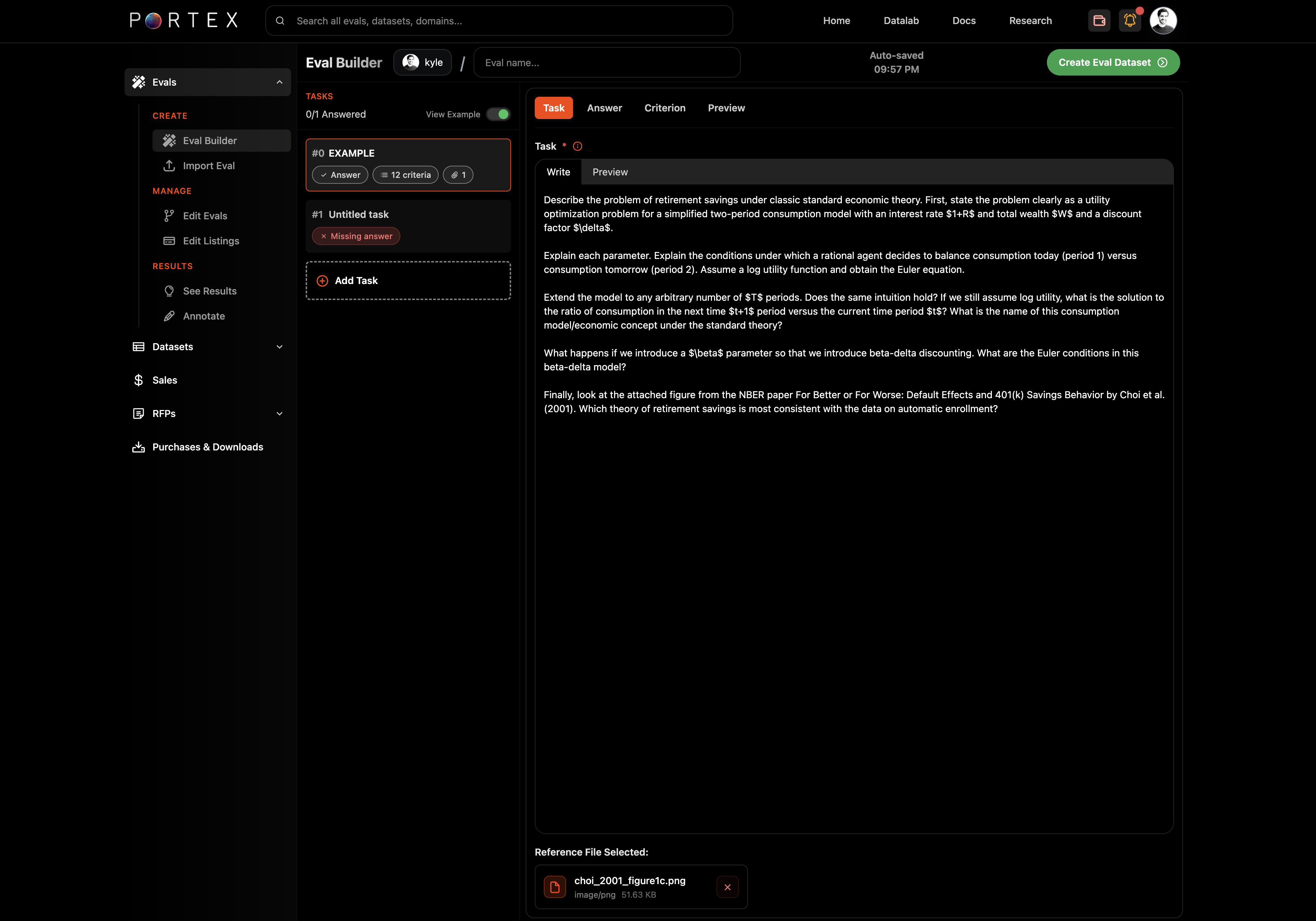
You can view an example eval by toggling "View Example" in the Eval Builder header. For agentic evals, the example shows a TerminalBench task with environment configuration and Exact Match criteria.
{% endhint %}
## Write a Task
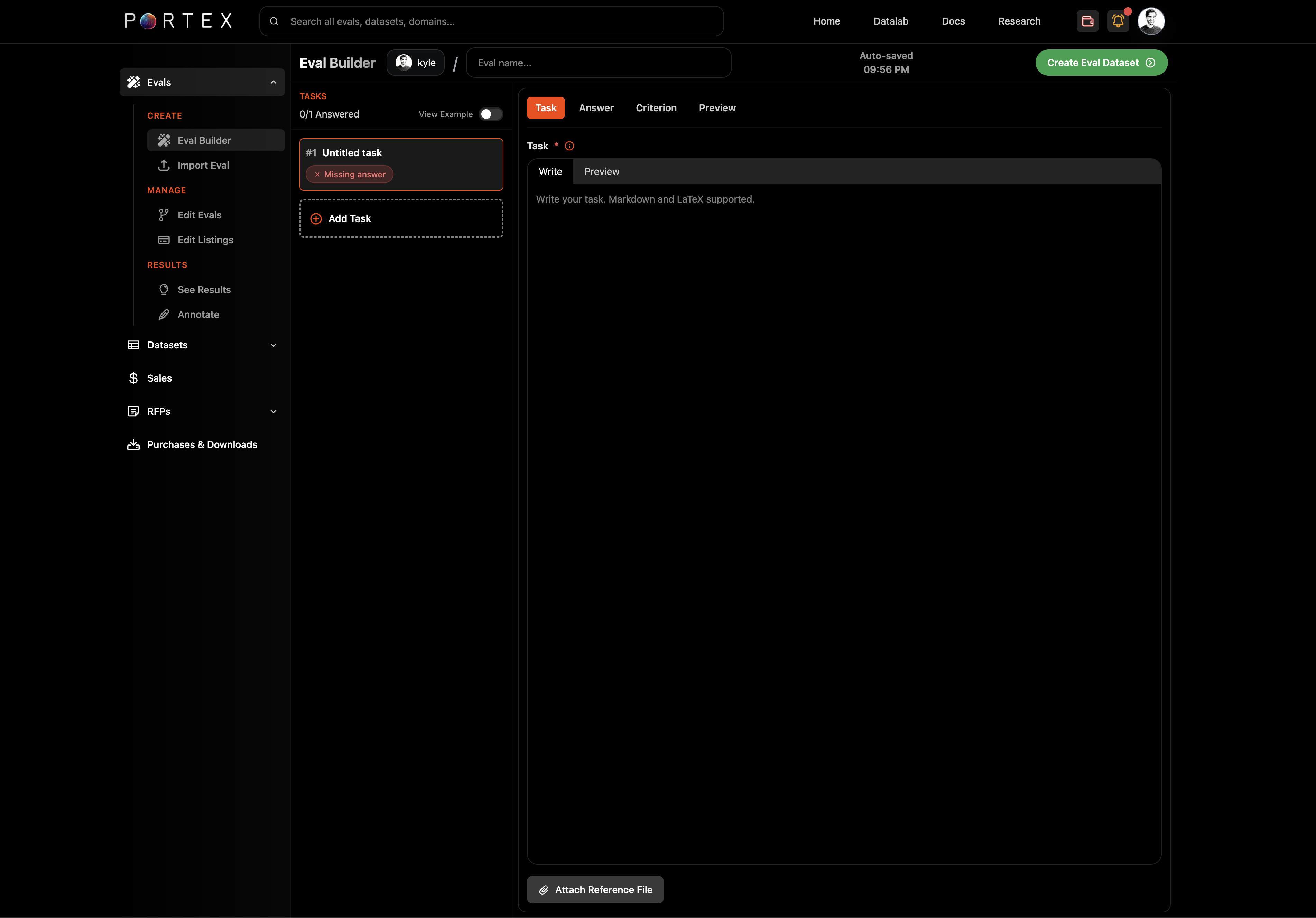
The left panel shows your task list. Click "+ Add Task" to create a new task.
In the right panel, the Task tab provides a markdown editor with LaTeX support. Write your task prompt here. Be specific about the expected output format and any constraints (see the [Eval Design Guide](/portex-docs/for-experts/eval-design-guide.md) for best practices).
### Attach reference files
If your task requires the model to analyze a document, image, or dataset, click "Attach Reference File" below the editor.
* **Q\&A evals**: one reference file per task. Accepted formats: PDF, images (JPG, PNG, WebP, GIF), CSV, TXT, JSON, Markdown, HTML.
* **Agentic evals**: multiple reference files per task. Files are mounted into the agent's container. The total size of all reference files must fit within the container's memory allocation. Agentic tasks accept most file extensions.
## Write the Answer (Golden Reference Solution)
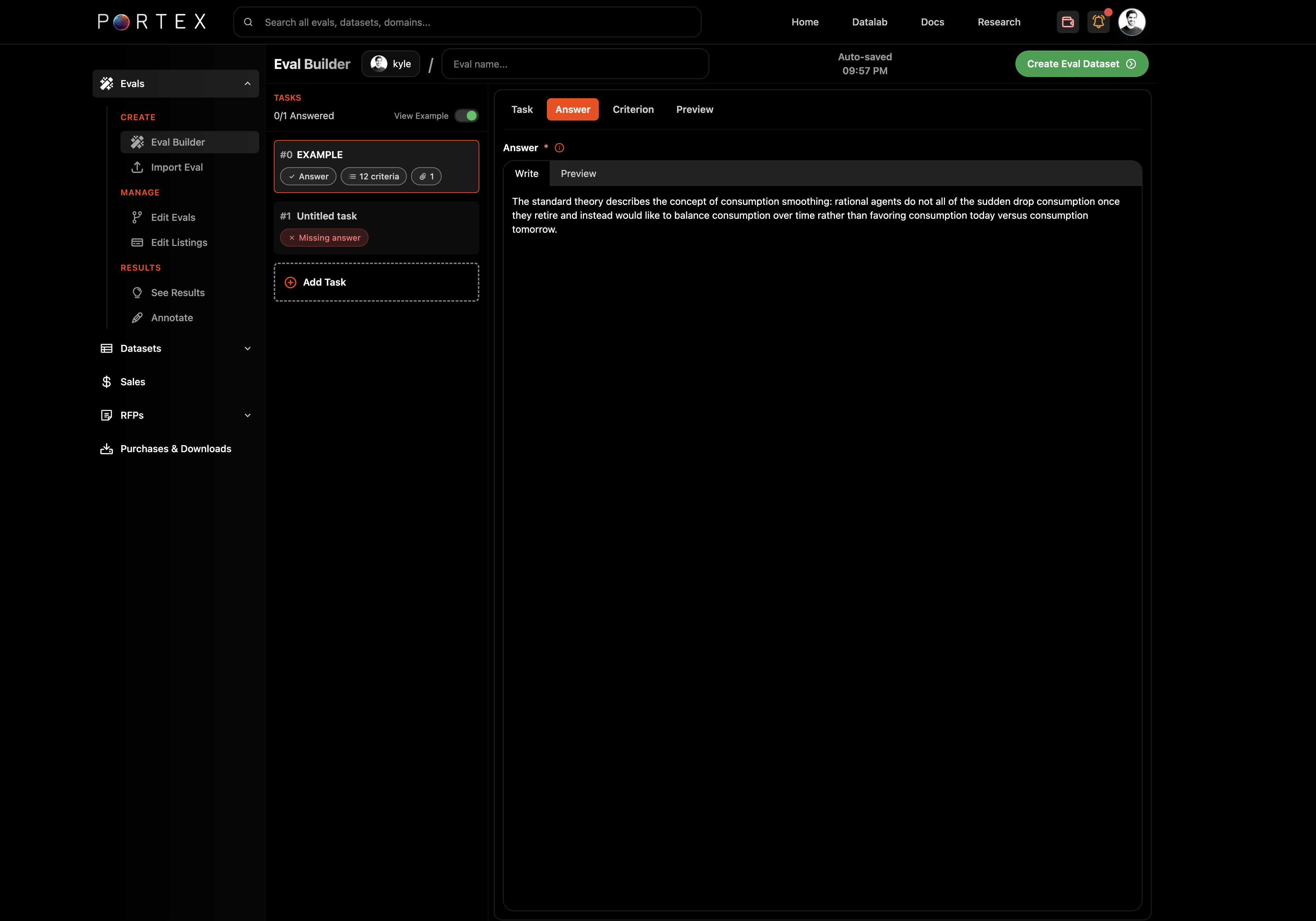
Switch to the Answer tab and enter the correct answer for the task. This field is required. This serves as the golden reference solution. Think: what is the most important, salient output from this task?
The answer key is kept private by default. Models and buyers do not see it unless you sell the Core Dataset.
## Define Grading Criteria (Rubric)
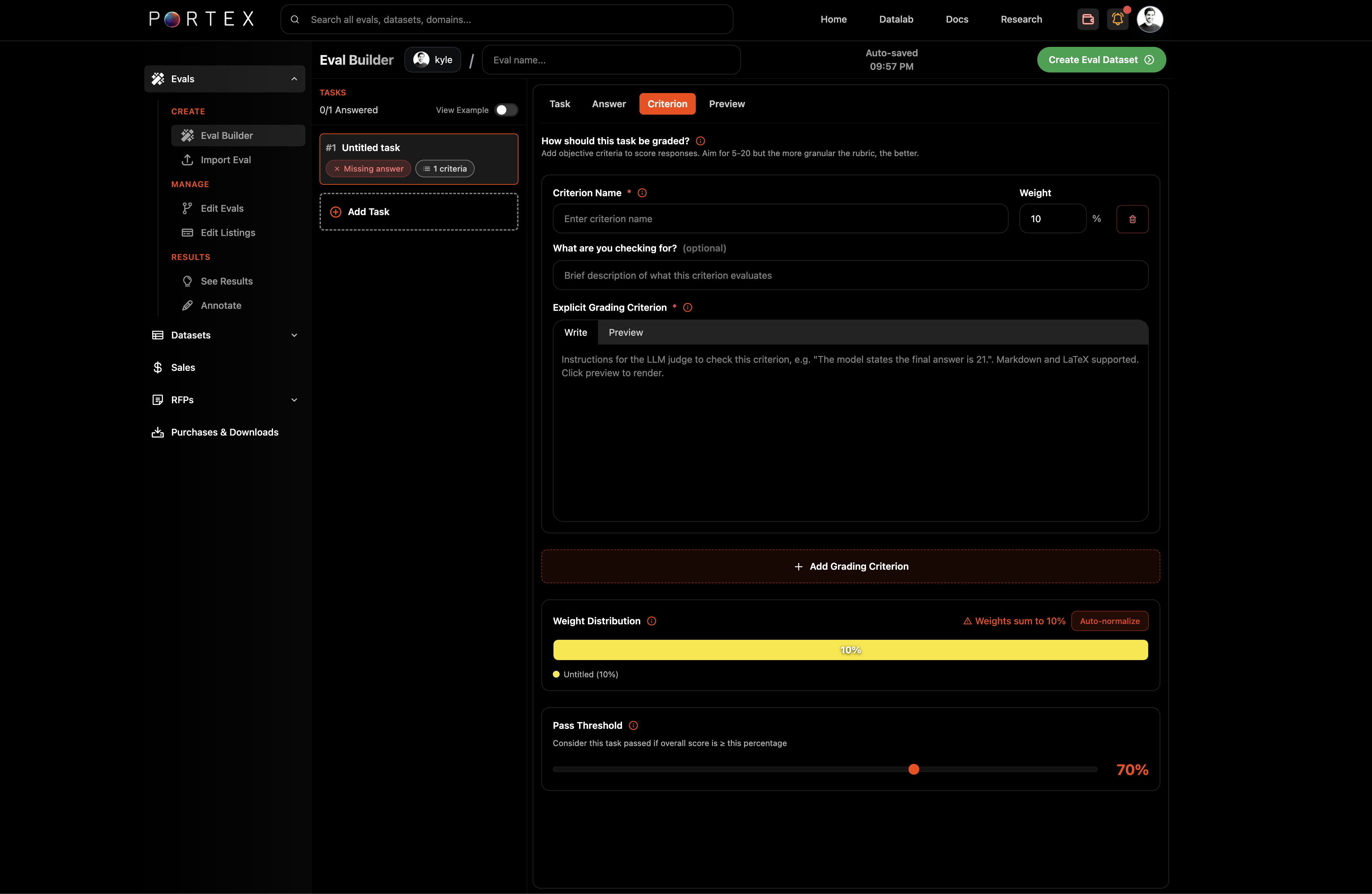
Switch to the Criterion tab. Here you define a rubric of criteria.
{% hint style="warning" %}
Note: If you use a rubric, make sure to specify exact numbers in the "Explicit Grading Criterion". For example, if the solution to a calculation is $145,824, this number must appear in the Explicit Grading Criterion so the judges know what to look for. Repeat info from the Answer as needed.
{% endhint %}
Click "+ Add Grading Criterion" to add a criterion. For each criterion, fill in:
* Criterion Name (required): a short label describing what is being checked
* Grader Type: choose between LLM-as-a-Judge (semantic evaluation by an LLM jury) or Exact Match (string comparison, agentic evals only)
* Weight: the percentage weight for this criterion
* Description (optional): context for what you are checking
* Explicit Grading Criterion (required): the specific details the judge should check. For LLM-as-a-Judge, this is the prompt sent to the jury. For Exact Match, this is the expected string value. Include exact numbers and figures when relevant. Supports markdown and LaTeX.
### Weight distribution
The bottom of the Criterion tab shows a weight distribution bar and the total weight sum. Click "Auto-normalize" if your weights do not sum to 100%.
### Pass threshold
Set the pass threshold as a percentage (e.g., 70%). A task is marked as passed if the weighted score across all criteria meets or exceeds this value.
## Configure the Environment (Agentic Only)
For agentic evals, the Environment tab appears in the task editor. This is where you define the sandboxed container that the agent will run in.
### Environment presets
Start by selecting an environment preset that matches your domain. Presets pre-configure the base image, packages, resources, and timeouts for common use cases:
* **General Researcher**: Web research, document parsing, light analysis
* **Finance Analyst**: Tabular analytics, stats, spreadsheets
* **Legal Review**: OCR, PDF extraction, legal document workflows
* **Chemistry**: Cheminformatics with RDKit and Open Babel
* **Data Science**: General ML and analysis
See [Harbor: Environment Presets](https://github.com/portex-ai/portex-documentation/blob/master/core-concepts/harbor.md#environment-presets) for full details on each preset.
### Container configuration
You can configure the container in two modes:
**Simple mode**: Select a base image from the dropdown (e.g., `python:3.11-slim`, `ubuntu:24.04`, `node:20-slim`) and add system packages (via apt-get) and Python packages (via pip). You can pin package versions (e.g., `pandas==2.2.3`).
**Dockerfile mode**: Write a custom Dockerfile for full control over the build process. The Dockerfile must contain a `FROM` instruction and has a 10,000 character limit.
### Resources
Set the compute resources for the container:
* **CPUs**: Number of CPU cores
* **Memory**: RAM in MB
* **Storage**: Disk space in MB
* **GPUs**: Number of GPUs (0 for CPU-only tasks)
Resource presets are available: Standard (1 CPU, 2 GB RAM), Boosted (2 CPU, 4 GB), Heavy (4 CPU, 8 GB).
### Timeouts
Configure how long each phase of execution can run:
* **Agent timeout**: How long the agent can execute (default: 900 seconds / 15 minutes)
* **Verifier timeout**: How long the verifier can run to check output (default: 900 seconds)
* **Build timeout**: How long the container build can take (default: 600 seconds / 10 minutes)
### Task metadata
For agentic evals, you can also set task metadata (helpful for open sourcing and for contributing to benchmarks):
* **Difficulty**: easy, medium, or hard
* **Category**: a free-text label (e.g., "software-engineering")
* **Tags**: multiple tags for organization
* **Time estimates**: expected completion time for an expert and a junior practitioner, in minutes
## Preview
The Preview tab renders the task as it will appear to model builders, including formatted markdown, reference files, tools, and (for agentic evals) environment configuration.
## Create the Eval Dataset
Once you have written all your tasks with answers and criteria, click "Create Eval Dataset" in the top right. This packages your work into an eval dataset on the Datalab.
From here, you can [publish a listing](/portex-docs/for-experts/publishing-your-eval.md) to make the eval available to model builders.